

TL;DR: The highest-win fixes (in order)
If you only do a few things, do these:
1) Remove overclocks (CPU/GPU/RAM) and test again
2) Check temps under load (CPU + GPU)
3) Update GPU drivers the right way (clean install if needed)
4) Test RAM (because bad RAM causes “random” chaos)
5) Check drive health + free space (a dying SSD/HDD causes freezes + crashes)
If you get stuck halfway through, don’t brute-force it — that’s usually when people accidentally make it worse.
If you’re dealing with gaming PC issues (crashes, overheating, FPS drops, random shutdowns), this guide will walk you through the same safe “triage” I use to narrow problems down fast — without wasting your time on fluff.
Two options (both valid):
– Fix it yourself** using the checklist below (start here).
– Save time and avoid making it worse → **Start My Repair Ticket** and bring it to me.
First: 60-second safety check (don’t skip this)
Stop troubleshooting and shut it down **immediately** if you notice:
– Burning smell, smoke, popping/clicking from the PSU area
– The PC shuts off instantly the moment you start a game (repeatedly)
– Visible sparks, melted plastic, or the power cable/plug is hot
That’s how small problems turn into expensive ones.
Step 1: Write down the symptom (this saves you a ton of time)
Pick the closest match:
– A) PC won’t power on
– B) PC powers on, but no display
– C) Game crashes to desktop
– D) PC restarts or shuts off during gaming
– E) Blue/Black screen errors (BSOD)
– F) FPS drops / stutter / input lag
– G) Artifacts (weird blocks, sparkles, lines, flashing textures)
Also ask: What changed recently?
– Windows update? New GPU driver? New game update?
– New RAM? New GPU? New PSU? Moved the PC? Added a second monitor?
That one detail often tells you where to look first.
Step 2: Do the “10-minute triage” (fast wins)
1) Kill overclocks (even “stable” ones)
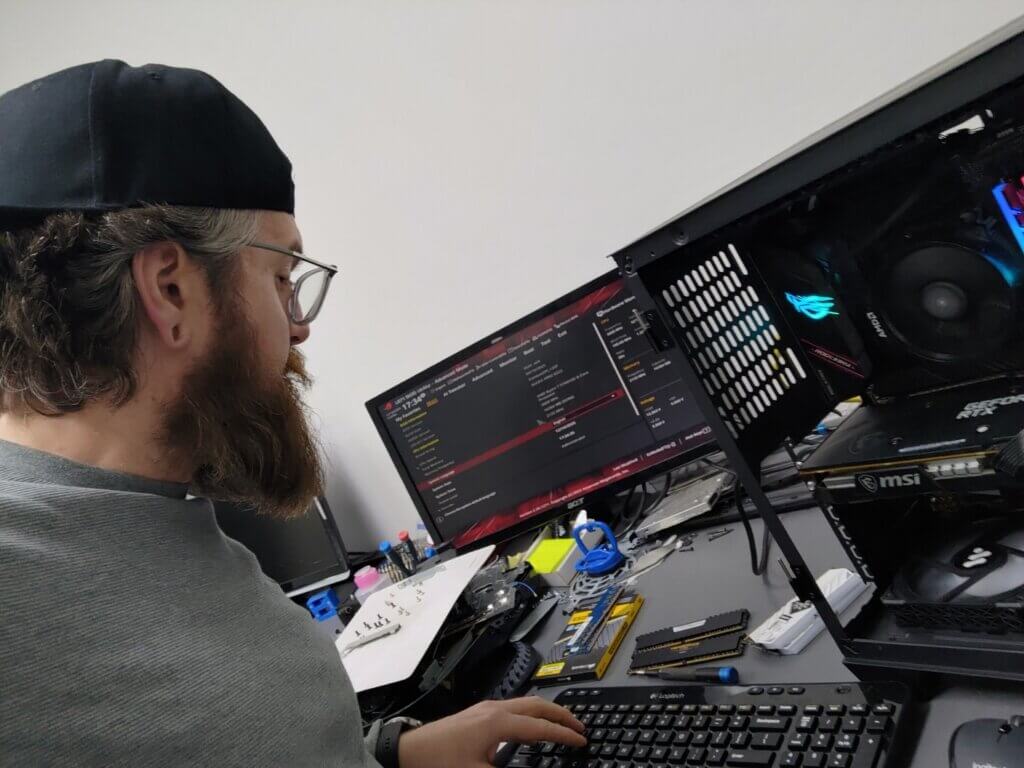
Overclocks that were fine for months can start failing after a driver update, game update, or just heat buildup. So turn off any overclocking in the BIOS, an app like Ryzen Master, or MSI Afterburner.
– Set GPU to stock (no OC profiles)
– In BIOS, disable XMP/EXPO temporarily (just for testing)
– If you undervolt, revert it and test stock
If your crashes stop after this… congrats! You found the category of problem.
2) Check temperatures while the problem happens
Overheating doesn’t always look like “the PC is hot.” It often looks like:
– stutter
– FPS dips
– sudden shutdown
– crash right when the GPU ramps up
Quick checks:
– Make sure all fans actually spin under load (CPU + GPU)
– Make sure the front intake isn’t blocked by carpet/wall
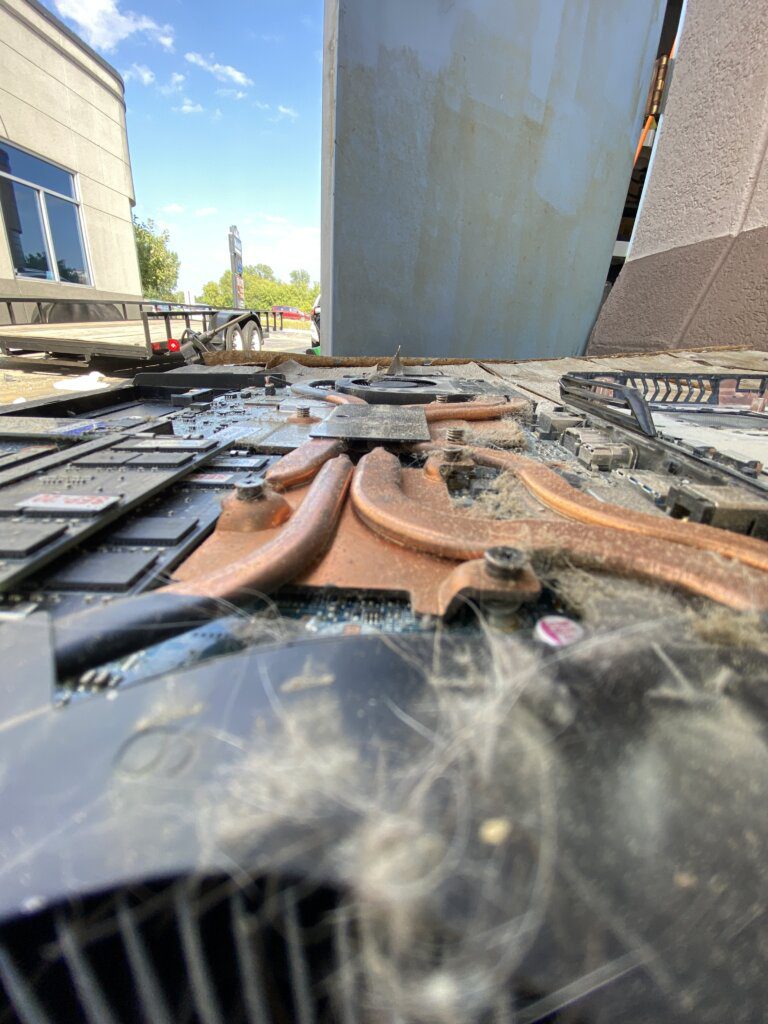
– If you haven’t cleaned it in a while: dust is not a “maybe” — it’s a performance limiter
If your PC is packed with dust: don’t go wild with a vacuum inside the case. If you’re not comfortable cleaning it safely, that’s a perfect “bring it in” moment.
3) Check Windows crash history (no guesswork)
Windows keeps receipts.
Open **Reliability Monitor** and look for the exact time the crash happened.
– Search “View reliability history”
– Look for red X’s around the crash time
– Click the event → it often points to a driver, game, or failing component
This step alone can save you hours.
Step 3: Fix by symptom (pick your lane)
A) PC won’t power on
Try this:
– Plug into a different outlet (or bypass the power strip)
– Reseat the power cable at the PSU and wall
– Flip PSU switch off/on
– If it still won’t power: stop here (PSU or board issue is likely)
If you’re not 100% sure: don’t keep cycling power over and over.
B) Powers on, but no display
Try this:
– Make sure your monitor cable is plugged into the GPU, not the motherboard (common issue)
– Try a different HDMI/DP cable
– Try a different monitor/TV input
– Reseat the GPU (only if you’re comfortable doing it safely)
If you get display only sometimes, that can be GPU, cable, PSU, or even RAM.
C) Game crashes to desktop (but Windows stays on)
This is usually:
– corrupt game files
– GPU driver issue
– unstable RAM/overclock
– overlays / background apps fighting your game
Try:
– Verify game files (Steam/Epic/etc.)
– Disable overlays temporarily (Discord, GeForce overlay, etc.)
– Close background hogs
– Update GPU driver (see “Driver Fix” section below)
If one specific game crashes but others don’t, it’s often game files/settings first.
D) PC restarts or shuts off during gaming
This is the big one.
Most common causes:
– overheating (CPU/GPU)
– power delivery (PSU or cables)
– unstable RAM/XMP
– GPU driver issues
Try:
– Remove overclocks/XMP (test stock)
– Watch temps
– If it shuts off the instant the GPU loads: don’t ignore the PSU as a suspect
Important: don’t open a power supply. Ever. If a PSU is failing, the fix is replacement and testing.
E) Blue/Black screen errors (BSOD)
If you’re getting stop codes:
– Remove any new hardware you added recently (if applicable)
– Update Windows
– Run system file repair (SFC/DISM)
– Test RAM (RAM is a top BSOD culprit)
BSODs aren’t “random.” They’re Windows telling you what category of problem it detected — we just have to read it right.
F) FPS drops, stutter, input lag (but no crashing)
This is usually:
– thermal throttling
– driver + Windows update conflicts
– background apps / startup bloat
– storage issues (game on a struggling drive)
Try:
– Check temps
– Disable heavy startup apps (Task Manager → Startup apps)
– Make sure you have decent free space on your SSD
– If the stutter started right after an update, you may need a GPU driver update (or hotfix)
G) Artifacts (blocks, sparkles, weird lines)
Artifacts usually point to:
– GPU driver issues
– overheating
– unstable GPU OC/undervolt
– failing GPU or power delivery issues
Try:
– Revert GPU to stock
– Clean install GPU driver
– Check temps
If artifacts happen across multiple games (and especially on the desktop), that’s a “stop testing and diagnose properly” situation.

The Driver Fix (GPU drivers done correctly)
If you suspect a driver issue:
1) Update your GPU driver normally first
2) If problems persist: do a **clean install**
3) If it’s still messy: use a full driver cleanup tool (advanced)
Driver problems are extremely common after big Windows updates or major game releases — and sometimes there are hotfix drivers specifically for performance issues.
RAM test (because bad RAM wastes your life)
If you have any of these:
– “random” crashes
– BSODs
– games that crash for no reason
– PC that’s stable in desktop use but fails under load
Test RAM:
– Quick: Windows Memory Diagnostic
– Deeper: MemTest86
If RAM errors show up, that’s not something you “tweak around” forever. You fix it.

When to stop DIY and bring it to me
Bring it in if:
– You’re getting repeat shutdowns under load
– You smell heat/burning or the PSU area is suspicious
– You’re seeing artifacts
– You’ve done the basics (stock settings + temps + driver check) and it’s still failing
– You don’t want to risk turning a $60 problem into a $600 one
My 3-step repair plan (fast + clear)
1) Start your ticket (takes 2 minutes)
2) Drop it off at the shop
3) I diagnose + fix it right — then you pick it up ready to game
No mystery process. No endless guessing.
FAQ
Why does my gaming PC only crash when I play games?
Gaming loads your GPU/CPU hard. That exposes heat, power, driver, and RAM problems that you won’t notice while browsing the web.
Should I update BIOS to fix gaming crashes?
Sometimes it helps, sometimes it creates new problems. If you’re not comfortable with BIOS updates, don’t start there.
Is my PSU causing random shutdowns?
It can. If the PC shuts off when the GPU ramps up, PSU and power delivery are high on the suspect list.
Can dust really cause crashes?
Yes. Dust traps heat. Heat causes throttling, instability, and shutdowns.
Troubleshooting Checklist (print this)
- Test at stock settings (no OC, no XMP/EXPO)
- Check CPU/GPU temps under load
- Check Reliability Monitor for crash clues
- Verify game files / disable overlays
- Update GPU driver (clean install if needed)
- Run RAM test (Windows Memory Diagnostic → MemTest86 if needed)
- Check drive health + keep free space available
- If shutdowns persist: stop brute-force testing and diagnose power/thermals properly
If you want the “shortest path to fixed,” start your ticket and bring it in.